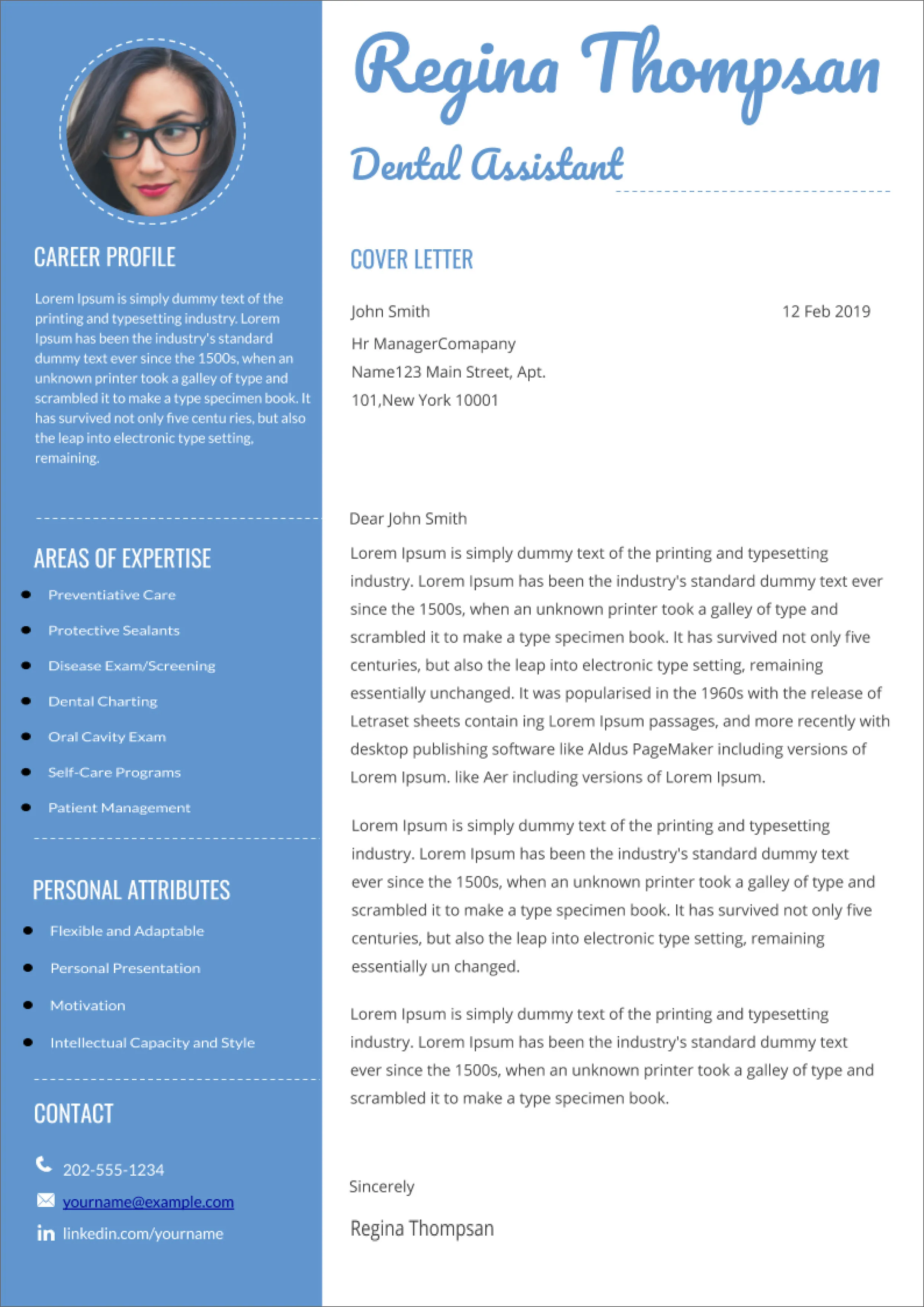
Cover Letter Format in Word [Ultimate Guide]
A well-formatted cover letter is a crucial component of any successful job application. It’s your first impression, a chance to showcase your personality and skills, and persuade a hiring manager to read your resume. In this guide, we’ll delve into the intricacies of cover letter formatting in Microsoft Word, ensuring your application stands out from the crowd. We will explore the essential elements, formatting tips, and common pitfalls to avoid, empowering you to craft a compelling cover letter that gets you noticed.
Understanding the Cover Letter’s Importance
The cover letter serves as a bridge between your resume and the hiring manager. It’s an opportunity to expand on your qualifications, demonstrate your enthusiasm for the role, and highlight why you’re the perfect fit. A well-written cover letter, tailored to the specific job and company, can significantly increase your chances of landing an interview. It allows you to explain any gaps in your resume, address specific requirements of the job description, and showcase your communication skills. Recruiters often use cover letters to assess your personality, writing style, and attention to detail.
Why Formatting Matters

Formatting isn’t just about aesthetics; it’s about readability and professionalism. A poorly formatted cover letter can be a major turn-off, suggesting a lack of attention to detail or a disregard for professional standards. Proper formatting ensures your letter is easy to read, allowing the hiring manager to quickly grasp your key qualifications and understand your value proposition. It also reflects your understanding of workplace expectations and your ability to present information in a clear and concise manner. Consistency in formatting creates a polished and professional appearance that enhances your credibility.
Essential Formatting Elements
Font Selection and Size
Choose a professional and easily readable font. Common choices include Times New Roman, Arial, Calibri, and Helvetica. Avoid overly decorative or unusual fonts, as they can detract from the content. The ideal font size is generally between 10 and 12 points. This size ensures the text is large enough to read comfortably without appearing unprofessional or cluttered. Maintain consistency throughout your cover letter; use the same font and size for all text elements, including headings and body paragraphs. This consistency enhances readability and creates a professional look.
Margins and Spacing

Use standard margins of 1 inch on all sides of your document. This provides adequate white space, preventing the text from appearing cramped. Proper spacing between paragraphs is essential for readability. Use a single space between lines within a paragraph and a double space between paragraphs. This creates visual breaks that make it easier for the reader to follow your arguments and absorb information. Adjusting the spacing is crucial to a professional look; too much or too little can make your cover letter look messy and unprofessional.
Header and Footer
While not always required, a header can be used to include your name and the date. This helps to identify your document if it’s separated from your resume. Avoid including unnecessary information in the header. A simple format like “Your Name | Date” is sufficient. The footer can be used for page numbers, especially if your cover letter extends to multiple pages. Ensure the header and footer are consistently formatted and do not distract from the main content of your cover letter. Keep them clean and simple to maintain a professional appearance.
Proper Use of Paragraphs and Line Breaks
Break up your content into logical paragraphs. Each paragraph should focus on a single idea or topic. Avoid overly long paragraphs, which can be difficult to read and may discourage the reader. Keep paragraphs concise, typically between 3-5 sentences. Use line breaks effectively to separate paragraphs and create visual breathing room. Proper use of line breaks enhances readability and helps the hiring manager quickly scan your key points. Avoid using excessive line breaks, which can make your cover letter look disjointed and unprofessional.
Structuring Your Cover Letter

Contact Information
At the top of your cover letter, include your full name, address, phone number, and email address. Ensure this information is accurate and up-to-date. Use a professional-looking email address; avoid using nicknames or unprofessional handles. Place this information flush left or right. Make it clear and easy for the hiring manager to contact you.
Date and Salutation
Below your contact information, include the date. Then, address the hiring manager using a professional salutation. If you know the hiring manager’s name, use “Dear Mr./Ms./Mx. [Last Name].” If the name is not available, use a general greeting like “Dear Hiring Manager” or “Dear [Company Name] Hiring Team.” Avoid generic greetings such as “To Whom It May Concern.” Always spell the recipient’s name correctly.
Body Paragraphs

The body of your cover letter is where you highlight your qualifications and express your interest in the position. Start with an engaging opening paragraph that captures the reader’s attention and states the specific role you’re applying for. In the following paragraphs, provide concise details about your skills and experience, directly relevant to the job description. Tailor your content to the specific requirements of the role. Use action verbs to describe your accomplishments and quantify your achievements whenever possible. Show enthusiasm for the role and the company. Conclude by mentioning your resume and inviting the hiring manager to contact you.
Closing and Signature
In the closing paragraph, reiterate your interest in the position and thank the hiring manager for their time and consideration. Use a professional closing, such as “Sincerely,” “Best regards,” or “Thank you.” Leave space for your signature. If you’re submitting a digital cover letter, type your full name below the closing. If submitting a printed letter, sign your name in ink above your typed name.
Formatting Tips for Different Job Types
Formatting a Cover Letter for Corporate Jobs

For corporate jobs, maintain a highly professional and polished format. Use a conservative font, such as Times New Roman or Arial, and adhere strictly to standard margins and spacing. Avoid any creative or unconventional formatting choices. Focus on clear and concise language. Make sure to highlight your relevant skills and experience, directly addressing the requirements outlined in the job description. Proofread carefully for any grammatical errors or typos. The overall impression should be one of competence, reliability, and attention to detail.
Formatting a Cover Letter for Creative Roles
When applying for creative roles, you have more flexibility in your formatting choices. You can incorporate a slightly more contemporary font and layout, but always ensure readability. Consider using subtle design elements to showcase your creativity, but avoid being overly distracting. Tailor the tone and style of your cover letter to match the company’s brand and culture. Be mindful of the industry standards and expectations. Focus on your portfolio and highlight your ability to create impactful and visually appealing content. Use the cover letter as an opportunity to demonstrate your design skills.
Formatting a Cover Letter for Remote Positions
When applying for remote positions, emphasize your ability to work independently and manage your time effectively. Highlight your communication skills, as you’ll be interacting primarily online. Ensure your formatting is clean and professional. Demonstrate your understanding of remote work tools and technologies, if applicable. Tailor your cover letter to show how you thrive in a remote setting. Make sure to include any relevant certifications or experience. Be clear about your availability and willingness to collaborate with remote teams.
Advanced Formatting Techniques

Using Templates and Styles
Microsoft Word offers various cover letter templates. These templates can provide a good starting point and guide you through the layout. However, customize the template to reflect your personal brand and the job requirements. Ensure the template is professional and aligns with your overall application. Familiarize yourself with Word’s Styles feature. Styles allow you to format your cover letter consistently and efficiently. Create custom styles for headings, body text, and other elements to save time and ensure uniformity throughout your document.
Proofreading and Editing
Proofreading is a crucial step. Errors and typos can undermine your credibility. Always proofread your cover letter carefully before submitting it. Use spell-check and grammar-check tools, but don’t rely solely on them. Read your cover letter aloud to catch any awkward phrasing or inconsistencies. Ask a friend or family member to proofread your cover letter for a fresh perspective. Consider using online proofreading tools for an additional check. Ensure your cover letter is error-free and polished.
Saving Your Cover Letter in the Right Format

Save your cover letter as a PDF file unless the employer specifically requests another format. A PDF ensures your formatting remains intact, regardless of the recipient’s operating system or software. Name the file using a clear and professional naming convention, such as “Your Name - Cover Letter - Job Title.” Avoid using special characters in the file name, as they may cause issues. Double-check the final PDF before submitting your application to confirm that the formatting is correct.
Common Formatting Mistakes to Avoid
Ignoring Formatting Guidelines
Failing to adhere to basic formatting principles is a significant mistake. This includes using an illegible font, incorrect margins, or excessive spacing. The reader may struggle to read your cover letter. This suggests a lack of attention to detail. Always follow the employer’s instructions. Even if no specific formatting instructions are provided, stick to standard practices. Make sure your formatting reflects professionalism.
Using Excessive Formatting
Overusing bolding, italics, or underlines can be distracting and make your cover letter appear cluttered. Similarly, using too many different fonts or font sizes is unprofessional. Stick to a simple, clean design. Avoid excessive highlighting or color. The goal is to create a professional and readable document. Less is often more in cover letter formatting.
Poor Readability
Poor readability is one of the most common mistakes. Ensure your text is easy to read by using a clear font, appropriate font size, and sufficient white space. Avoid long paragraphs. Break up the text. Consider using bullet points for key skills or achievements. The goal is to make it as easy as possible for the hiring manager to quickly understand your qualifications and why you are a good fit for the role.
Conclusion
Mastering cover letter formatting in Word is essential for making a positive first impression. By following the guidelines outlined in this guide, you can create a professional, readable, and compelling cover letter that showcases your qualifications and increases your chances of landing an interview. Remember to tailor your cover letter to each specific job application. Always proofread and edit carefully before submitting it. Apply these techniques. Enhance your application.